%20(1).png)
Introduction:
-
Electric has launched an automation with Google Workspace.
-
As a customer of both Google Workspace and Electric, you can now integrate the two applications in order to expedite the creation and deactivation of employee accounts.
-
The integration also supports profile data sync, keeping employee information consistent across both platforms automatically as changes are made in Electric or your applicable HRIS system.
Benefits:
-
Automating the creation and deactivation of employees improves efficiency and security. It eliminates manual processes, reducing human error and ensuring employees have timely access.
-
Automation supports a departing employee’s access being promptly revoked - mitigating security risks.
-
Employee profile data stays current in Google Workspace whenever a supported field changes in Electric, whether updated manually or pushed through an HRIS sync.
-
It streamlines onboarding and offboarding, saving time for employees to get back to more strategic tasks in the day instead of manually managing application access for their coworkers.
Scope of the Current Google Workspace Automation:
-
New Account Creation
-
Existing Account Suspension
-
Employee Profile Data Sync
How to Set Up Google Automation:
Please make sure you are an admin user within both Electric and Google Workspace for your company to complete this process in just a few minutes. If you are not an admin, you’ll need to partner with that person at your company to complete this set up.
Prerequisite: Add Google Workspace to your Electric applications via my.electric.ai/applications
Steps:
-
Navigate to the Applications from the left side navigation
-
Click on the Google Workspace application in the application list
-
Within the automation settings box, click the “Connect Google Workspace” button
-
Follow the instructions in the pop-up window
-
Once returned to the automation settings box, check the boxes to enable the automation as desired
-
Future requests for employee accounts to be removed or added will utilize these settings going forward.
Employee Profile Data Sync
With profile sync enabled, Electric will automatically push employee profile updates into Google Workspace whenever a profile field changes in Electric, whether that change was made manually by an admin or triggered by an HRIS sync.
At this time, only the following fields are included in the sync:
-
First name
-
Last name
-
Phone number
-
Job title
-
Personal email
-
Work email
You can also enable the Notify app champion on failure setting. When checked, if a profile push fails, the app champion will be assigned a manual task showing which fields need to be updated. This ensures nothing falls through the cracks if a sync doesn't go as planned.
Profile sync runs as part of the broader automation and requires no additional setup beyond enabling it in the automation settings box after connecting Google Workspace.
Configuring Access and Settings
Once automation is connected, you can fine-tune exactly how Electric manages Google Workspace accounts from the Access & Settings tab on the Google Workspace application detail page. This is where you configure account creation and removal behavior, and set up group-level overrides for teams with different needs.
Default Settings
Default settings apply to all employees unless a custom group setting overrides them. Think of this as your baseline configuration that powers the whole organization.
Account Creation settings include:
-
License SKUs (for example, Google Workspace Business Standard)
-
Organizational Unit assignment
-
Calendar configuration
-
Group membership
Account Removal settings include:
-
Removal method (delete/disable account)
-
If removal method is set to disable these additional settings are available
-
Update Organizational Unit
-
Revoke additional licenses
-
Reset user MFA
-
Remove user from groups
-
Revoke active user sessions
-
Delete application-specific passwords
-
To edit your default settings, click the pencil icon in the Default Settings section and update the fields as needed.
Custom Settings
Custom settings let you override the defaults for specific employee groups. This is ideal when different teams require different license types, organizational units, or offboarding behavior.
To add a custom group setting:
-
Click Add custom settings in the Custom Settings section
-
Select the employee group you want to configure
-
Define the account creation and removal settings for that group
-
Save your changes
Any group with a custom setting will follow those rules instead of the defaults during onboarding and offboarding. You can edit or delete custom settings at any time using the pencil and trash icons next to each group.
FAQS:
How do I know if the employee’s Google account was successfully created or was suspended?
-
To confirm the new email was created or an existing email was suspended successfully, you will need to confirm this within the Google Workspace Admin portal itself until the automation begins the generation of confirmation tasks in Electric.
-
The Application table in Electric will update with a status of connected once the connection is complete between the two systems.
When/How does Electric create the email in the Google Workspace instance?
-
Email accounts will be created (and suspended) at the moment an on/offboarding form is submitted in Electric.
-
On/offboarding forms can only be submitted at this time by an administrator of Electric account.
-
Because Electric does not support scheduling of an on/offboarding at this time, all automations are started on the moment of the form submission.
-
The resulting action to the employee email will be reflected right away within the Google Workspace Admin portal.
What happens if my HR System or other technology is already automatically creating my Google accounts now?
-
In this case, Electric application automations will be more valuable to you in the near future when more applications are available to be automated. There is no additional benefit in this instance to automating Google Workspace a second time in Electric.
-
Note: you can choose to automate either or both creation and suspension from the application specific settings shown in the screenshot above.
How do new employees receive the credentials they need to log in to their Google account after the onboarding form is submitted in Electric?
-
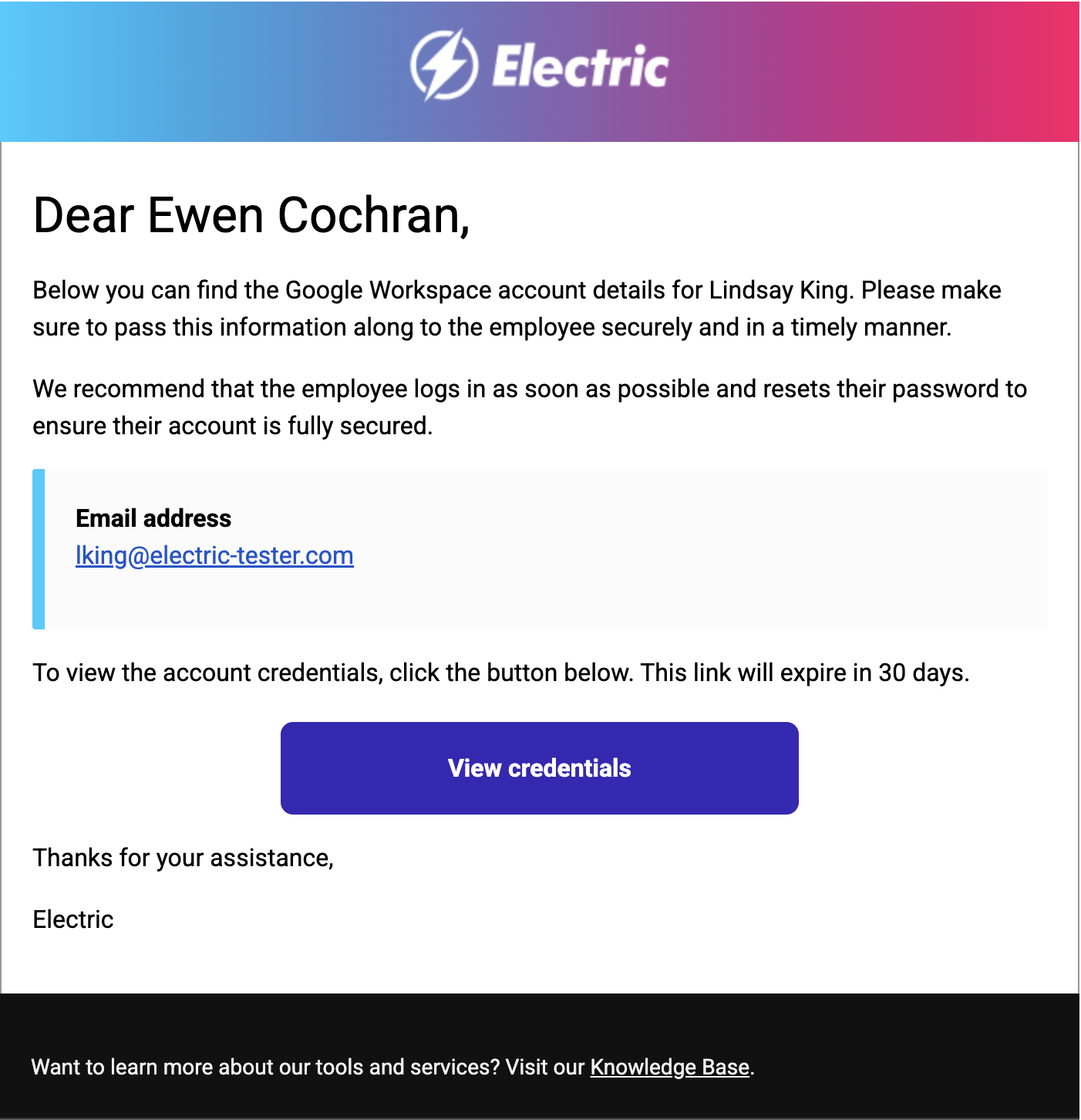
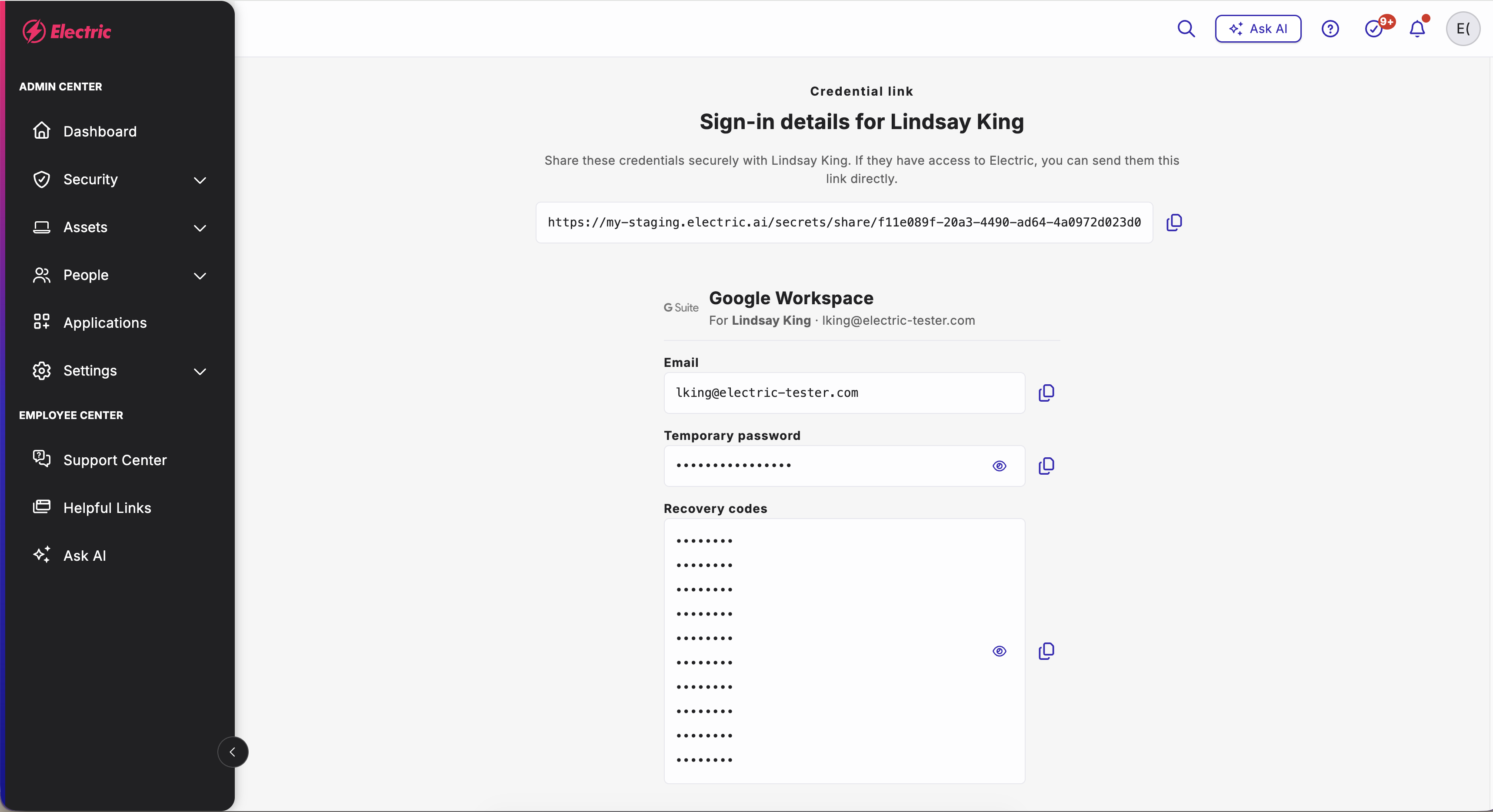
The submitter of the onboarding for the new employee (typically the “defacto” IT administrator or administrator of Electric) will receive an email with a link to view the credentials that appears just like the image below.
-
That link will take you to a secure page where you can copy the credentials and send to your new employee via the preferred communication method at your business.
Can I use Google Workspace SSO with Electric?
-
If you are already using Google Workspace as your SSO solution at your company, you can continue to do so with this integration.
-
If Electric is creating all your new (or deactivating departing) employees into Google Workspace, the rest of your SSO rules for applications should apply once set up by you in your Google Workspace Admin.
-
It would be recommended in this case to manage your other SaaS applications within Google Workspace SSO, instead of creating and deactivating employee accounts individually in Electric.
-
Note: at this time, emails from Electric might still be delivered to your company’s application champions even if you wish to only manage application access in the SSO. This behavior will be updated in the platform in the near future.
-
-
If you would like to set up SSO with Google Workspace for the first time or you are not sure where to begin with an existing implementation of it, please contact our support team to explore further feasibility: support@electric.ai
Please contact our team at support@electric.ai if you have any questions or need any additional information with setting up your application automation.