%20(1).png)
*Electric is an official partner of UKG
Introduction
Tired of manual onboarding checklists and device requests falling through the cracks? Electric integrates directly with UKG Ready to automate IT onboarding, offboarding, and device management, so your HR team doesn’t have to chase down laptops or revoke app access manually.
By syncing employee data from UKG Ready into Electric, you can kick off the entire IT lifecycle automatically assigning laptops, provisioning apps, and triggering secure offboarding tasks the moment changes happen in your HR system.
Feature Details
UKG Ready Integration Overview
Electric’s direct integration with UKG Ready allows you to:
-
Automatically sync new hires, terminations, and role changes
-
Instantly trigger IT onboarding and offboarding workflows
-
Assign or ship devices with less back-and-forth
-
Decrease manual errors and reduce HR-to-IT support requests
Supported UKG Platform
-
UKG Ready® – Best for small to mid-sized businesses managing workforce growth and compliance
Instructions
Connecting Your UKG Ready Account to Electric
-
Get your Company URL
-
Open UKG Application on your browser
-
Check the URL section in your browser
-
In this example the URL value of your organization would be:
https://secure5.us.rdy.ukg.dev -
Securely store this value for step 5.
-
-
Create a Security Group for Electric
-
Go to Settings -> Profile / Policies -> Security.
-
Click on “NEW SECURITY PROFILE”
-
Set up a Security Profile for the integration (see this PDF: SecurityProfiles_electric.pdf )
-
Name the Security Profile “Electric” or any name that represents the integration
-
Remember the Security Profile name for the next step.
-
-
Create an OAuth2 Application
-
Go to Settings -> Global Setup -> Company Setup
-
Under OAuth Applications, click on “ADD OAUTH APPLICATION”
-
If this section is not shown, go to “Edit Tabs” for displaying it.
-
-
Complete the fields for the new application as shown below:
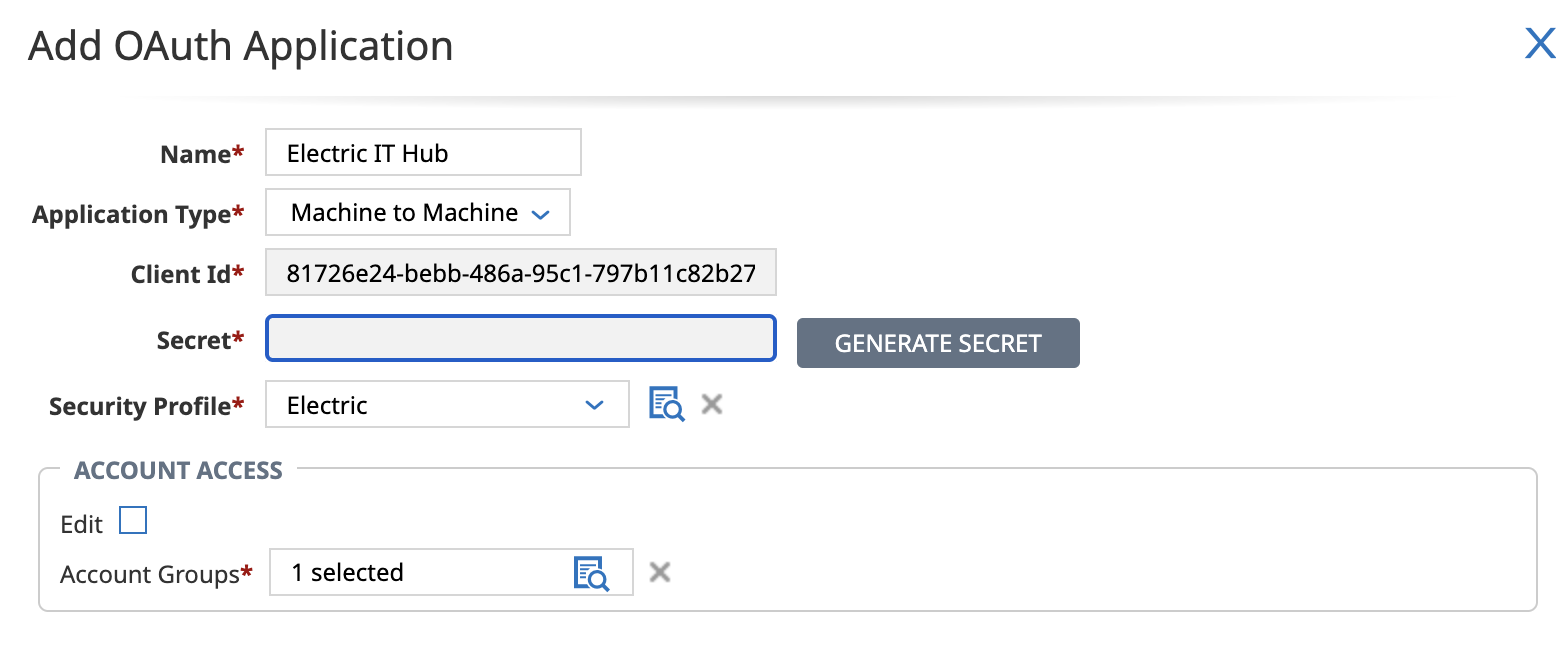
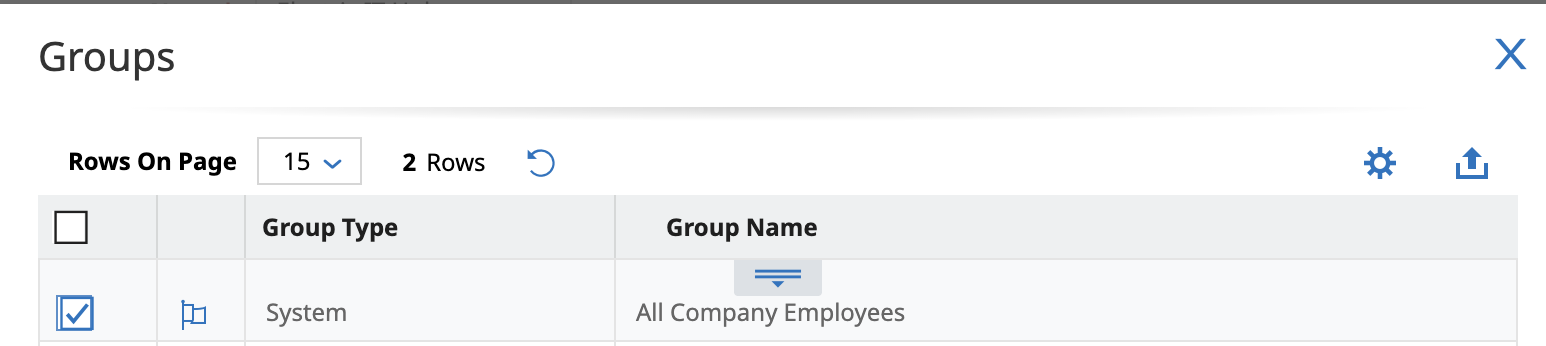
For groups select “All Company Employees”
-
Click on “GENERATE SECRET”
-
Securely store your Client ID and Secret for step 5
-
Click on “Save”
-
-
Get your Company Short Name
-
Go to Settings -> Global Setup -> Company Setup
-
Click on “Company Info”
-
Scroll until “Company Address”
-
See “Company Short Name”
-
Securely store this value for step 5
-
-
Log into Electric at http://my.electric.ai .
-
Access the top-right dropdown menu.
-
Click on “Settings”
-
Click on “Integrations”
-
Click on the kebab menu on the UKG Card and select “Connect Integration”
-
Enter all the required information.
-


Host/URL of Instance The URL value fetched in step 1.
Client Id The Client Id value created in step 3.
Client Secret The Secret value created in step 3.
Company Short Name The Name value fetched in step 4.
-
Click on “Connect”
-
Once authorized, your employee data will begin syncing
-
Changes in UKG Ready will now automatically trigger IT workflows inside Electric:
-
New hires can be assigned hardware, granted app access, and tracked from day one
-
Terminations trigger automatic app deprovisioning, device locking/wiping, and laptop retrieval
-
Department or title changes sync in real time for accurate application access and reporting
-
-
-
Visit People → Active Employees to manage your employees.

Disconnecting UKG Ready
To disconnect the integration:
-
Log into Electric
-
Navigate to Settings > Integrations
-
Click UKG Ready
-
Select Disconnect
FAQs
-
What is Electric’s sync time with UKG?
-
Electric syns with UKG every 15 minutes
-
Need Help?
Whether you're setting it up for the first time or need help troubleshooting, our team is here to support you.
Email us at support@electric.ai and we’ll help you get the most out of your UKG Ready + Electric integration.